Posts

Showing posts with the label Linux

Install and use 'htop' when the Linux 'top' command isn't wide enough or is too hard to read

Image
I was trying to troubleshoot an issue on an NVIDIA AI Workbench WSL instance and the top program didn't show enough information.  It was hard to read the monochrome output and the command section was too narrow to tell me the full program launch commands with all the parameters.  The NVIDIA VMs had htop  installed which colorized pieces of information and displayed at full widescreen width. Installation htop on Ubuntu Install with apt apt update && apt install htop in my case sudo apt sudo apt update && apt install htop   Installing htop in a WSL Instance (Ubuntu) Find the WSL instance wsl -l -v Shell into the VM using the wsl command wsl -d <wsl instance name> Install htop sudo apt update && apt install htop Installing htop in a Docker Desktop WSL instance (Alpine) I wanted to see what was happening in the WSL instance that runs my Docker containers to see the CPU load and process details. Shell into the Docker Desktop wsl instance...

Remove Windows executables from your WSL Linux path

Windows and WSL interoperability is fantastic but sometimes you end up with unintended side effects.  When coding I like to have specific tools and configurations for each environment.  Otherwise, I can get pathing or other problems.   Why is it complaining about a '\r' character when I'm running Linux?  It is because some Linux tools and Windows files collide with each other. With that in mind, you may wish to remove the Windows executables from your Linux $PATH.  There are two ways to configure the WSL to not import the Windows $PATH. You can disable or enable it on a per WSL instance basis.  You can globally configure WSL so that the PATHbehavior is the same for all WSL instances you have configured. Configuring individual WSL instances with wsl.conf Each individual WSL instance looks in its own configuration file   /etc/wsl.conf  that may not be created by default in your WSL instance. 1. Edit the existing /etc/wsl.conf .  Creat...

Use Amazon Coretto for OpenJDK Java 8 for Debian Linux like Kali - other version too

Image
Linux package repositories often only hold the latest LTS versions.  You have to look elsewhere if you need something like Java 8.  Look to Amazon Coretto if you want specific versions of Java installed on your Linux instance.  Amazon maintains Corretto distributions going back to Java 8 when checked at 2023 06. Debian, Ubuntu, Kali, etc. Users can add the Corretto repository to their instances and then install specific OpenJDK versions using standard apt . Installation Partially derived from https://docs.aws.amazon.com/corretto/latest/corretto-8-ug/generic-linux-install.html The Corretto install instructions assume you have add-apt-repository  installed.  So install add-apt-repository sudo apt update sudo apt install software - properties - common Add the Corretto repository wget - O - https: // apt.corretto.aws / corretto.key | sudo apt - key add - sudo add-apt - repository 'deb https://apt.corretto.aws stable main' Install Java 8 Corretto sudo apt - get up...

Run the Kali-Linux GUI in WSL2 with only two lines of code

Image
Microsoft has added graphics support to Windows WSL2 by adding a new graphical component called WSLg. The thing rocks but Linux can be fiddly for setting up what is essentially a remote desktop.  It turns out that the Kali team created a single package that handles everything,  kali-win-kex . Just install kali-win-kex and run it. Video Steps Upgrade WSL to support GUI integration Update your WSL to make sure  WSLg  is installed and is on the latest version. This code exists in the move-distribution.ps1 script wsl --update Install kali-win-kex Option 1: Enable kali-win-kex and run the Kali GUI without any upgrades From the Kali-Linux shell prompt # install the Kali remote destop server sudo apt update sudo apt install -y kali-win-kex # start the Kali remote desktop with Windows integration Option 2: Run updates, install all packages, enable kali-win-kex, run the Kali GUI Install package  kali-win-kex  and add...

Java 8 development on Linux/WSL with Visual Studio Code on Windows 10

Image
Linux on Windows via WSL 2, has become a great development environment when targeting cloud containers and functions.  Windows has a shot at becoming the favorite desktop for users building Linux applications. Visual Studio Code (VSCode) is a great IDE. VSCode can run in a split GUI/Server fashion with the GUI in Windows and all the full SDLC executing on Linux. Development happens inside the Linux, WSL2 leveraging VS Code Server The GUI happens as a real part of the Windows Desktop and connects to Remote  VSCode servers, in this case in WSL Linux Ooh A Video Java Development VSCode's Java integration is built on top of Java 11.  This means you probably will end up with Java 11 JDK installed in WSL2 Linux and in Windows.  By default, applications will be Compiled with Java 11.   You can target  application compilation against versions other than the one used by the IDE. This is done by installing the needed Java versions on the Linux side and adding th...

Docker on Azure PaaS - Tika Parser

Image
Azure PaaS services are an example of how the cloud has raised the raised the bar in the commodity platform space. More functionality is baked into the platform and less has to be built by software developers and enterprises. Some of the PaaS tenants are that it should be simple to scale-up and scale-out.  Networking should be simple and port exposure should be simple. Microsoft has at least 3 different Container services with different levels of PaaS-ness. They appear to be targeted more at Enterprise customers than the original SMB oriented PaaS services. It may be that the original ones just didn't support enterprise security, networking and other needs. Tech Comments The demonstration deploys a Tika Parser, Java Docker container running on each Azure Linux Docker PaaS services. Microsoft's move towards explicitly containerized PaaS services has both improved and degraded this model. Sample Scripts Use these scripts to experiment with Java Linux deployments on Azure ...

Installing CUDA Python - Numba - Ubuntu 18.04 LTS

You can run push portions of your Python programs to NVIDIA GPUs with Numba.  The install instructions are here .  Notes and Tips NVIDIA official GPU drivers are installed. Open-source GPU drivers don't work per the Numba Installation guide CUDA development kit is not required per the Numba install instructions See Seven Things You Might Not Know About Numba Install CUDA Python Support Run Python Anaconda Install Anaconda Follow  Linux installation instructions  on Anaconda site Download the .sh script bash the .sh script source ~/.bashrc to add conda to the PATH of the current terminal Install Cuda Python and JIT conda install numba & conda install cudatoolkit Verify Python program Use the program at the bottom of this page  Sample Python Program See  https://github.com/freemansoft/python-playground  for sample programs Change log Created 2020/03 Corrected NVIDIA captialization 2025/08

Installing CUDA 10.2 and RTX NVIDIA drivers on Ubuntu 18.04 LTS

I wanted install the NVIDIA GeForce drivers and CUDA development environment on a fresh Ubuntu 18.04 installation.  The target machine is an HP Z820 with a GeForce RTX 2060 Super card. This assumes you want to write C code when building applications for GPUs. The Numba Installation Instructions say you only need the GPU drivers if all your GPU programming is going to be done in Python. What didn't work Enabling proprietary drivers on installation did not work out of the box. The out-of-the-box install left my login process broken. The screen would turn black, and a cursor would appear and then would cycle back to the login screen. The problem was the display driver/Windows system crashed and then restarted back at login.  I was able to fix it by uninstalling the driver or doing an upgrade. Assumptions NVIDIA drivers are not installed.  You should remove the drivers and reboot before proceeding if the drivers are loaded.  Instructions exist on the inter...

No hack required for Linux on Chromebooks with the Termina VM and containers or Virtualbox

Image
Chromebooks have a security model that traditional laptop OS makes are still struggling to broadly implement. Chrome OS (Chromebook) is one of the more secure platforms for web browsing and web applications restricting users to a limited set of high level APIs. Power users   and developers often belittle the system because they are unable to install and run arbitrary applications. The ChromeOS and Chromium teams have resisted unbridled execution of the Linux programs because that would weaken the security profile of Chrome based devices.  ChromeOS/Chromium  as now addressed this issue by providing secure sandboxed environments that execute Linux programs that are highly isolated from the Chrome operating system. Chromebooks, including CloudReady devices, now support isolated  Crostini  Linux containers with only a single preference setting.  Crostini Linux runs in a sandboxed Linux Container inside a Linux VM.  Programs running inside Cr...

Tether Kali Linux to iPhone over USB

Image
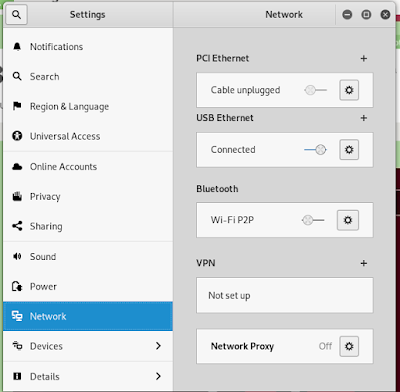
Tethering Kali Linux to your iPhone is very easy.  You can do this either via wifi or via a USB connection.  The USB connection has the advantage of charging the phone while using it. There may be security disadvantages. Tethering Enable your hot spot on the iPhone. Settings -> Personal Hotspot Plug your iPhone USB/Lightning cable into your laptop Select    Trust   when your iPhone offers the    Trust this Computer?   dialog. Verify the connection Method 1 Look at the iPhone.  You should  see the message     Personal Message: 1 Hotspot  at the top of the iPhone screen. Method 2 Open the Settings Application Select the Network panel Verify   USB Ethernet   is Connected Method 3 You should see the network connection icon in the upper left corner  in place of the wireless icon.  Click on that to see that USB Ethernet is Connected ...

Intel Galileo - "What were they thinking?"

The Intel Galileo is one of the more frustrating embedded / small system boards I've worked with.  I'm really not sure what Intel was thinking.  It feels like one of those "we need to get into this market" types of projects that is an off target response to ARMs penetration in the home hobbyist / small systems market. Intel has some work to do if they are serious about this board.  I suspect they will abandon it and try again with some other product. We've seen other projects from companies that have attempted to do the same thing.  The Microsoft .Net Micro Framework with the associated 2-3 board makers come to mind.  It was too small a market for Microsoft to commit any resources too. They open-sourced .NET MF and let it go fallow for at least two years. Pros Intel did a great job hacking the Arduino IDE to make it easy to build and run Arduino style sketches without any real knowledge of how the board works. There is 8MB of flash memory. It uses a po...